 PearPass
Adding Your First Item
Add passwords, login credentials, secure notes, and other sensitive information to your PearPass vault.
Sign in
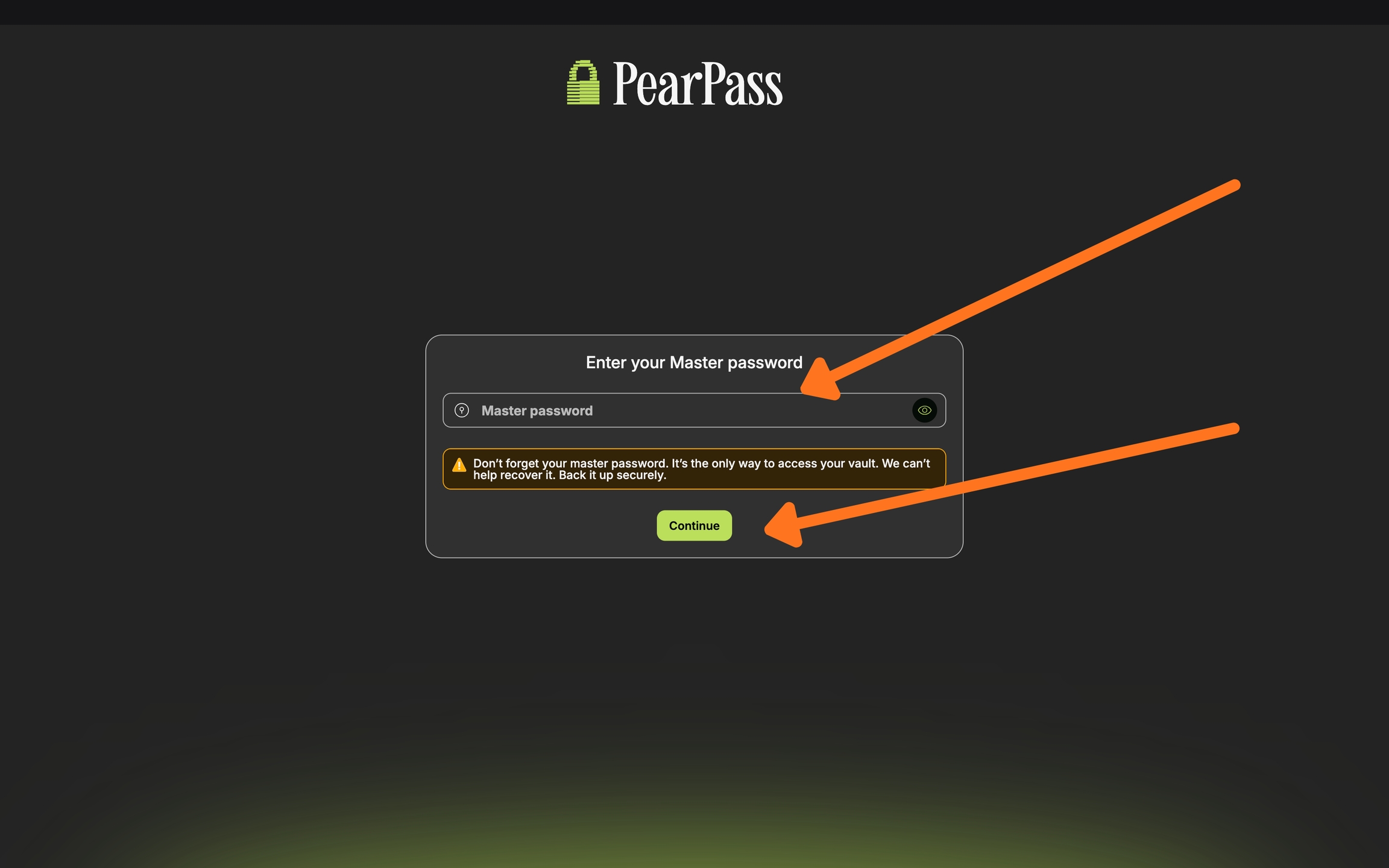
Open your PearPass application on your computer and sign in with your master password.
Select a vault
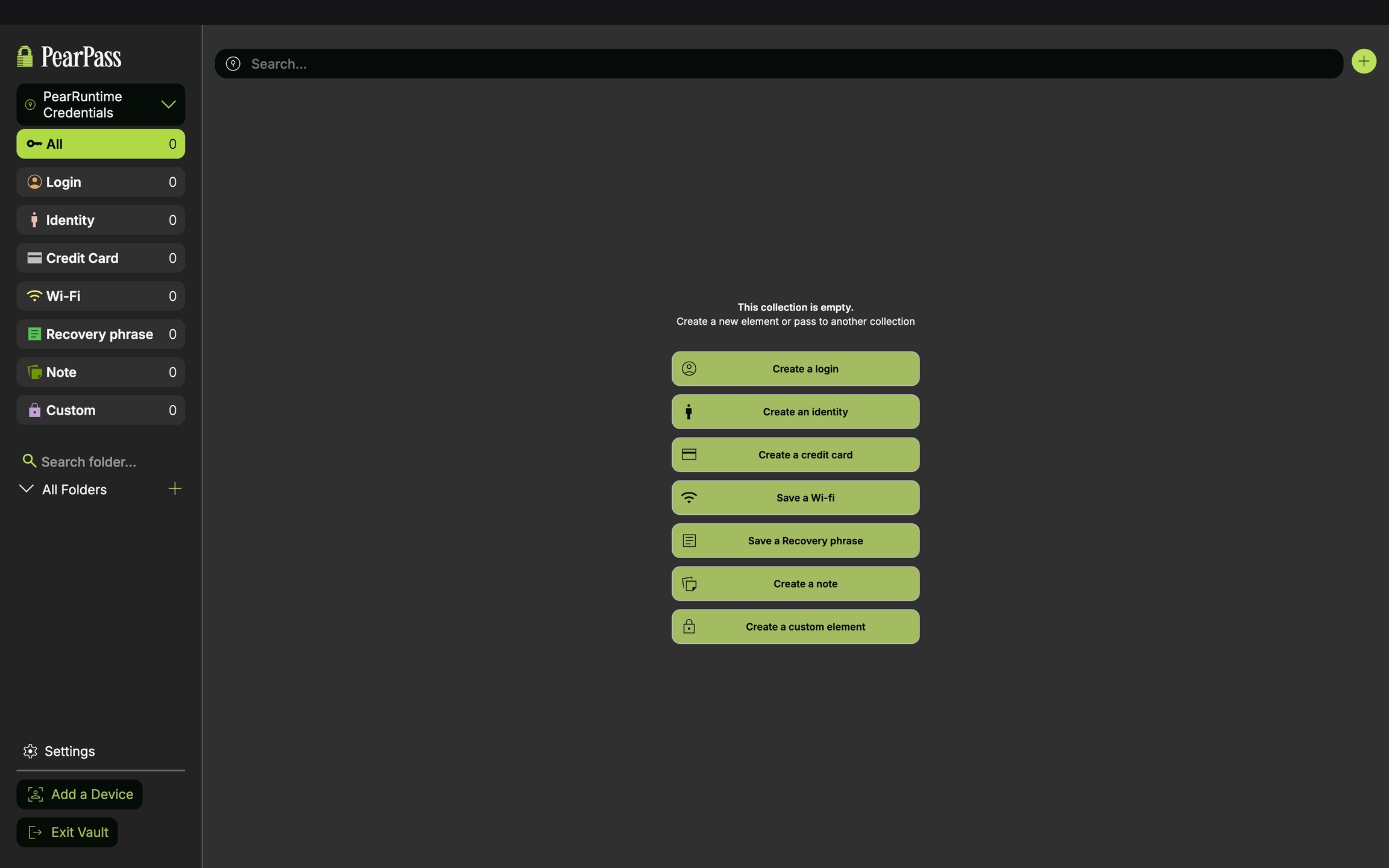
Select the vault where you want to store the item. For this example, we'll use the PearRuntime Credentials vault.

Choose item type
Select the type of item you want to add to your vault. For this example, we'll select Create a Login.
Enter item details
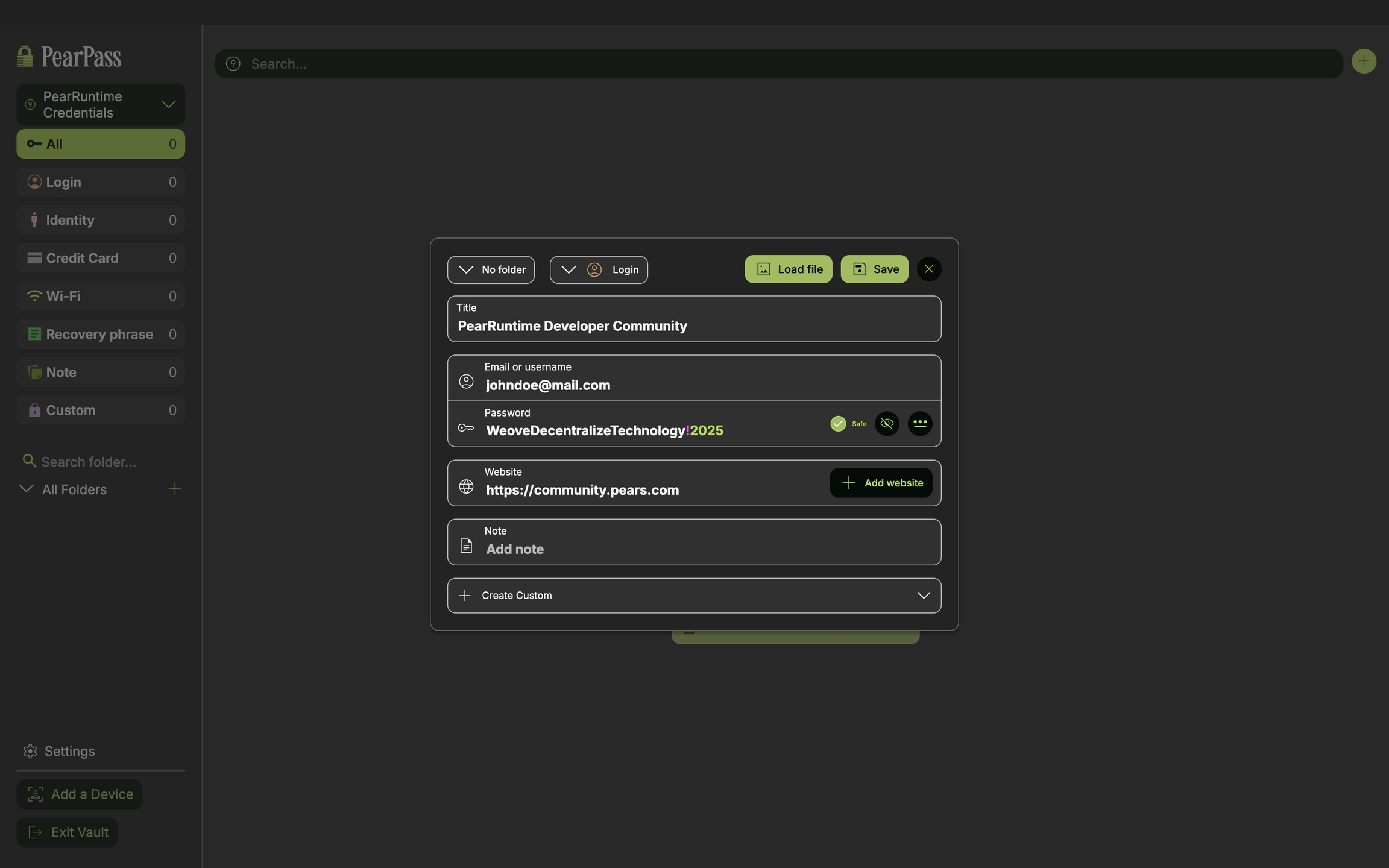
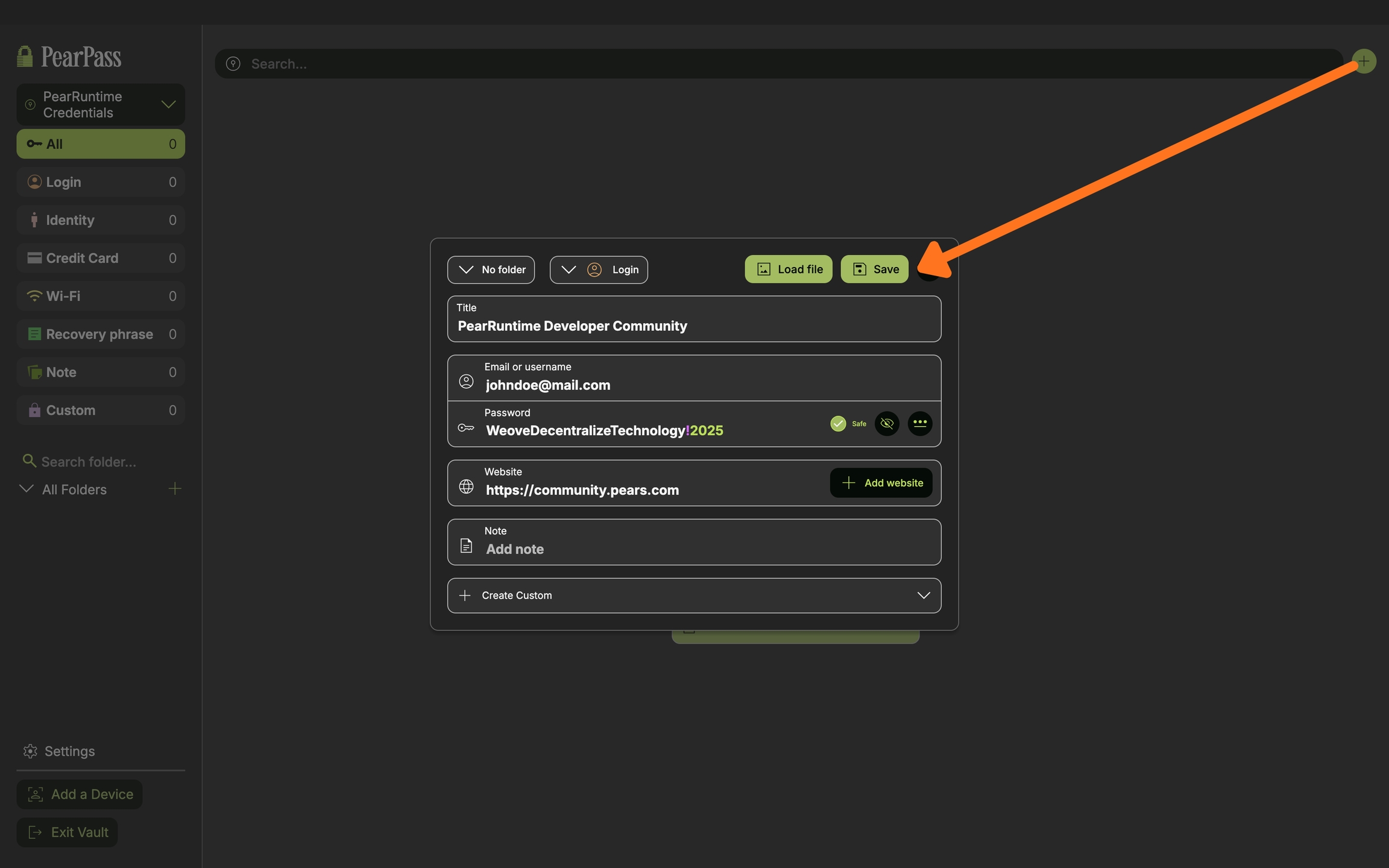
Enter the item details according to the type you selected.
Save
Click Save to add the item to your vault.
Sign in
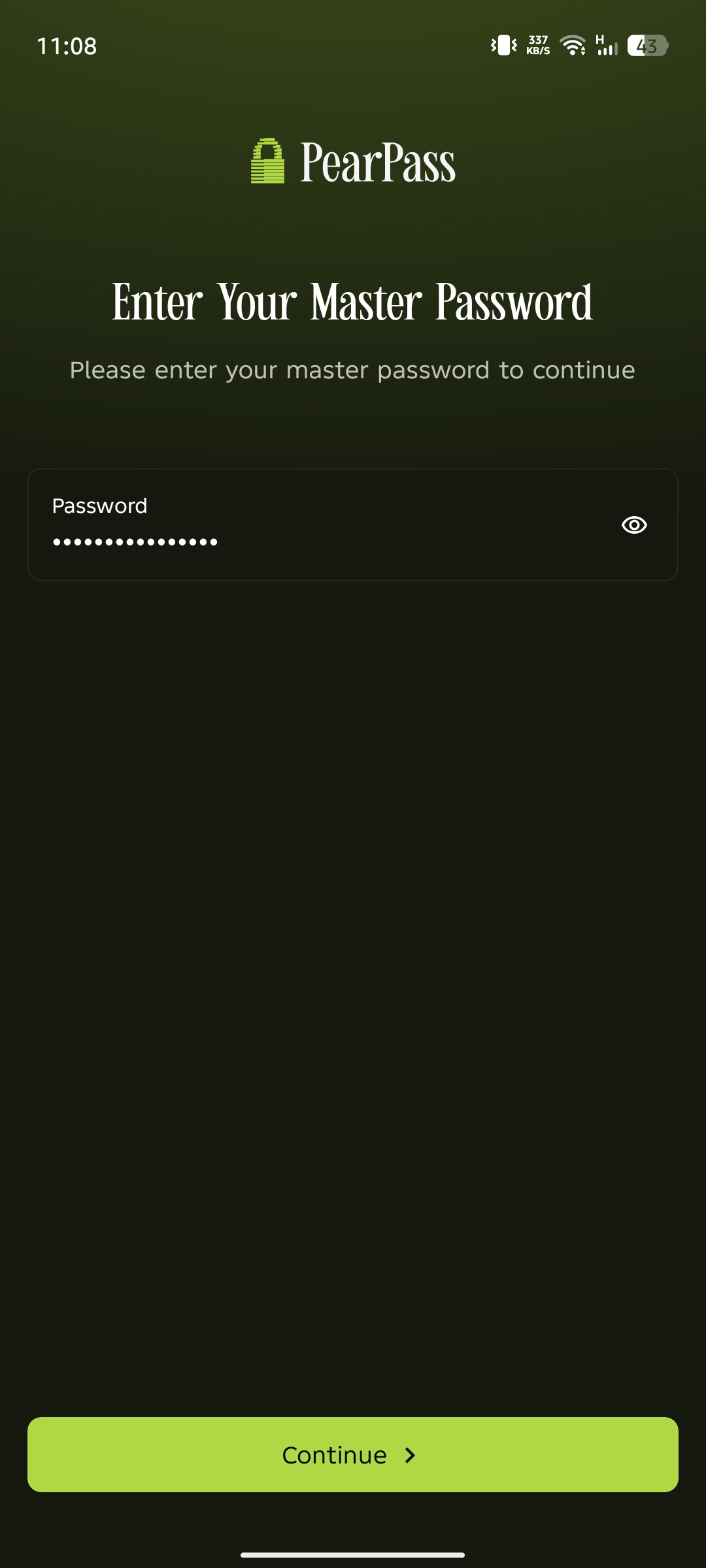
Open PearPass on your mobile device and sign in with your master password.
Add a new item
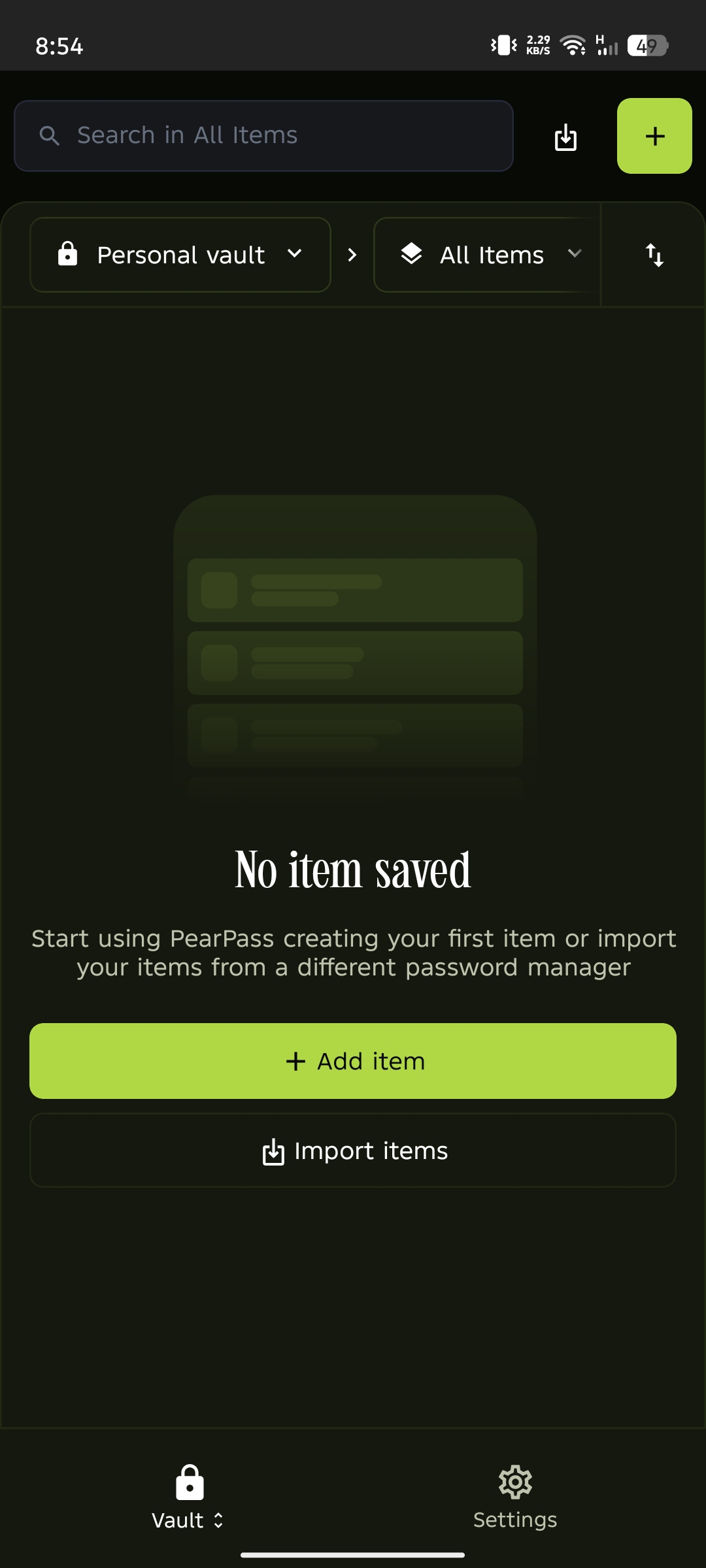
From your vault screen, tap the + icon in the top right corner to add a new item. If your vault is empty, you can also tap the Add Item button in the item list area.
Select item type
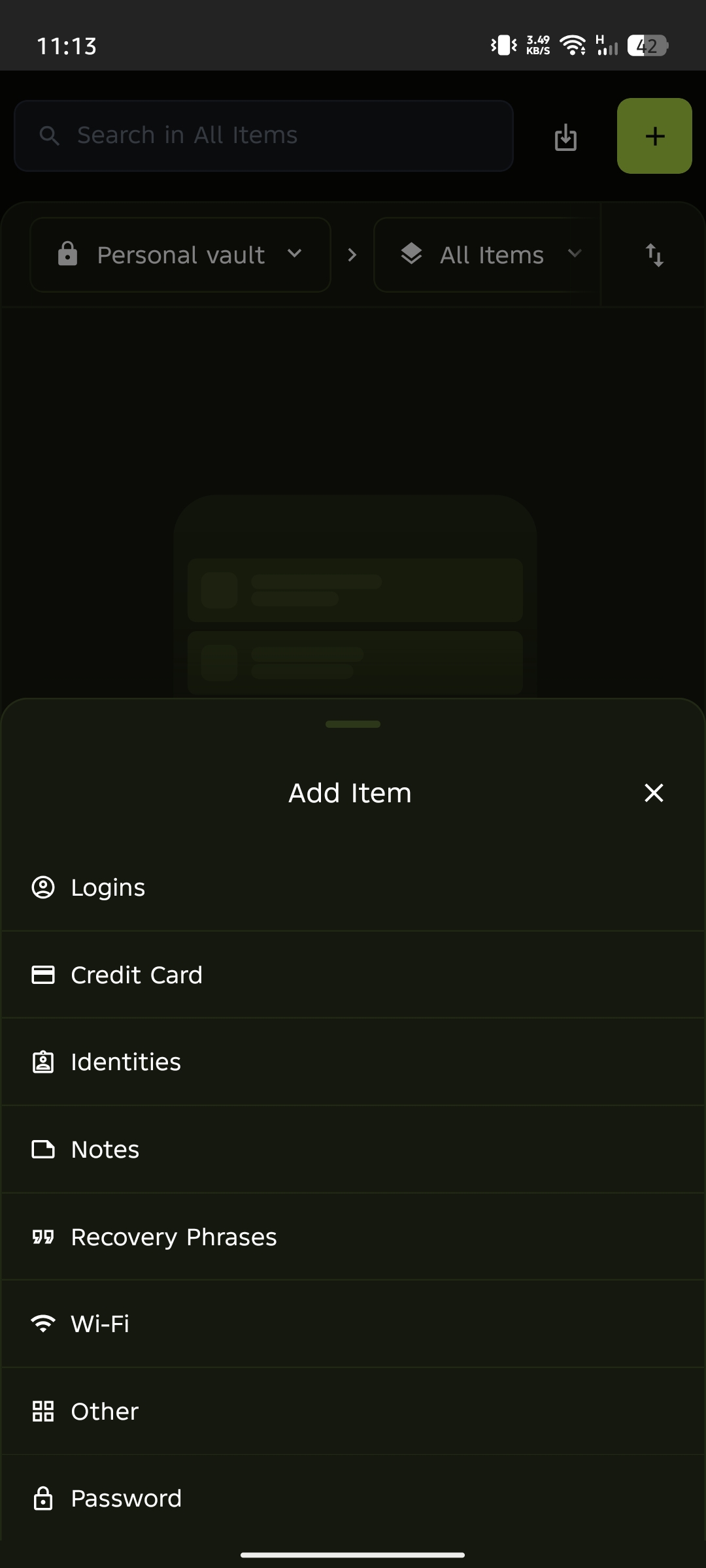
Select the type of item you want to add. For this example, we would create a Login item.
Enter item details
Enter the item details according to the type you selected.
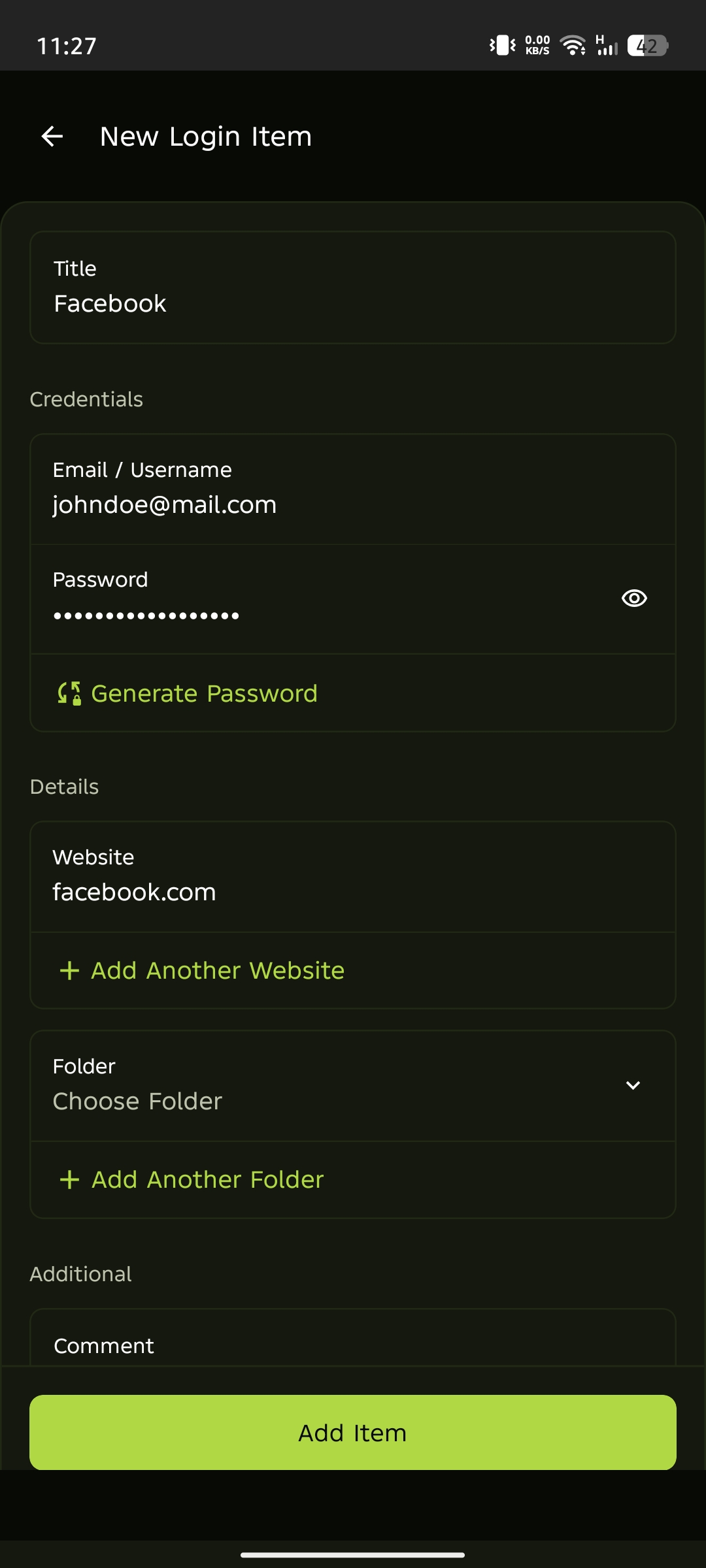
Choose a folder (optional)
To organize your item, select an existing folder from the Choose Folder dropdown, or tap Add Another Folder to create one.
Create a folder (optional)
Enter a folder name, then tap Create New Folder.
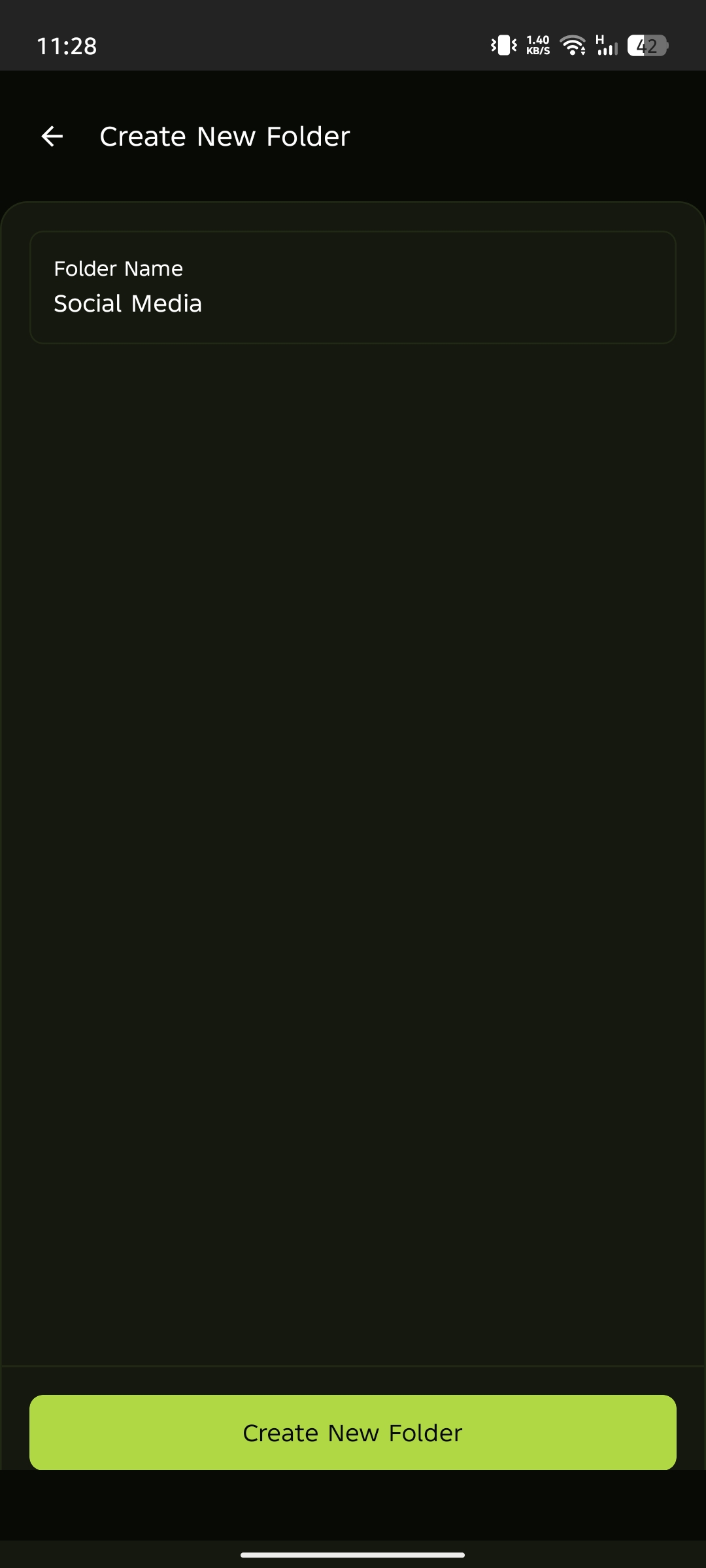
Review and add item
Review the item details, then tap Add Item to save it to your vault.
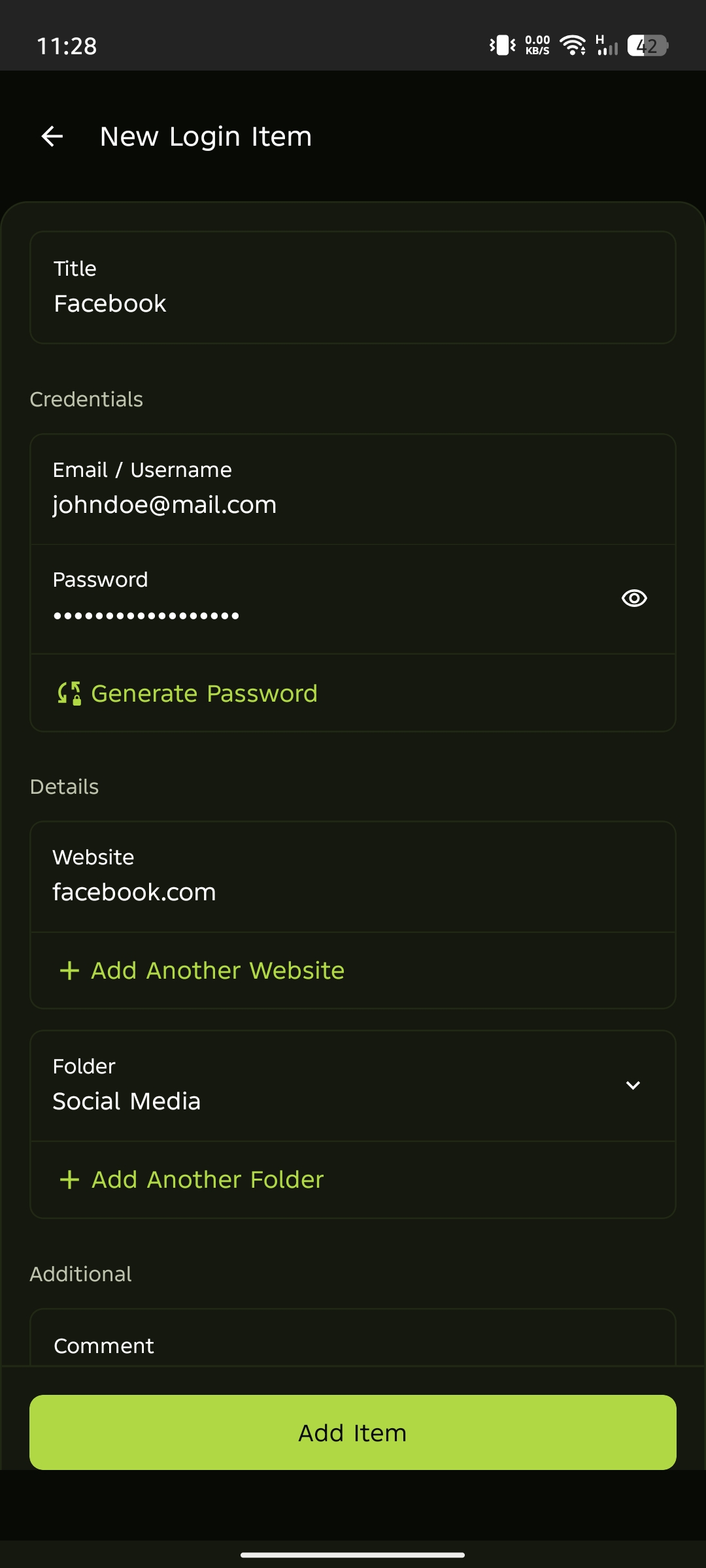
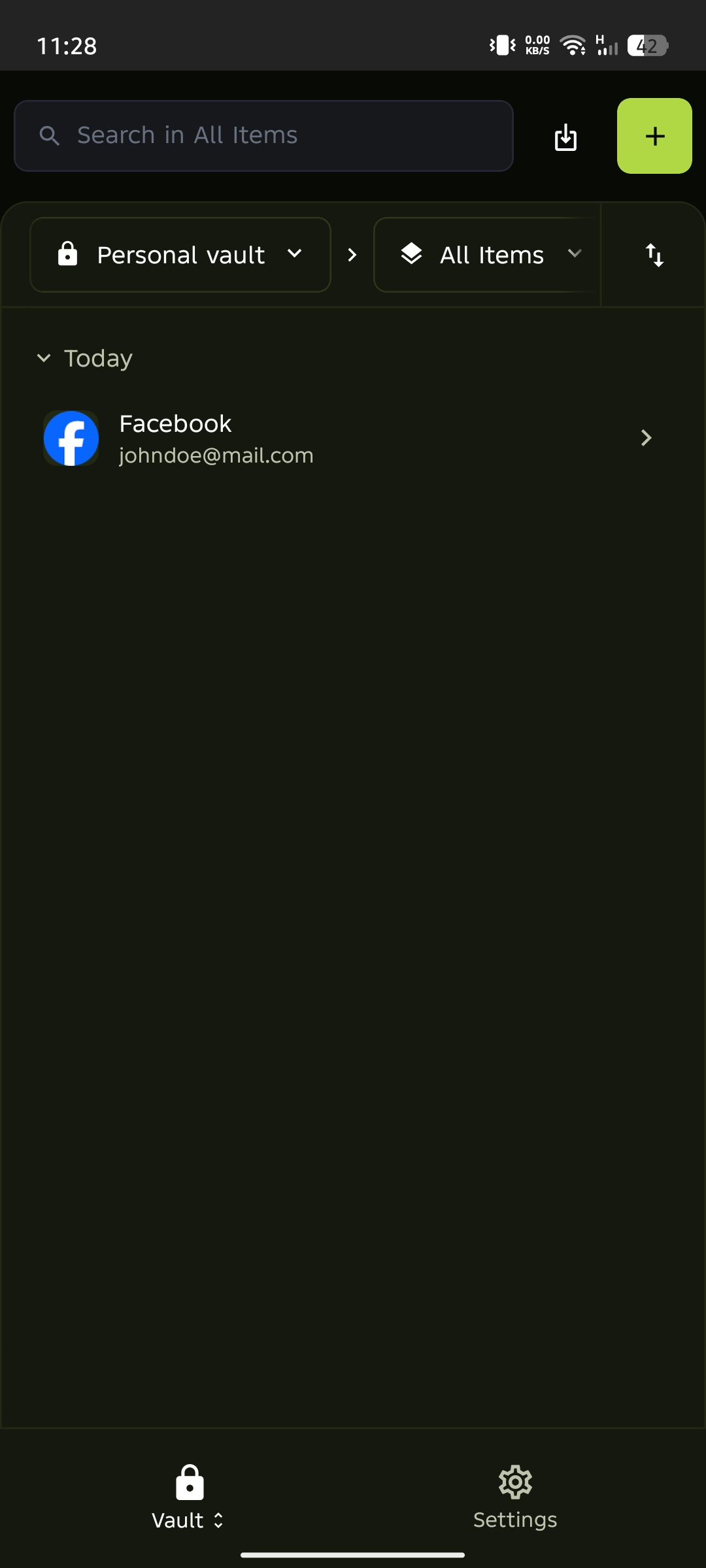
View your saved item
Your item is now saved. View and manage it directly from your vault.